Giving AI Agents Access to Real Hardware with ProxyBox MCP
ProxyBox now ships an MCP server. Here's why that turns a cloud-to-hardware bridge into something AI agents can use to print labels, read scales, and reach equipment behind your firewall.
I added an MCP server to ProxyBox this week.
If you haven’t been following MCP, or Model Context Protocol, the basic idea is pretty simple: it gives AI agents a standard way to discover and use tools.
And that makes ProxyBox a pretty interesting MCP server.
ProxyBox already solves the problem of getting from software running somewhere in the cloud to hardware sitting inside a building. Printers are the obvious example, but it can also talk to scales, serial devices, internal APIs, and other equipment that normally isn’t accessible from outside the network.
With MCP, an AI agent can now use those same capabilities.
AI Usually Stops at the Network
I’ve been using AI agents more and more in actual development work. They’re getting really good at working with code, databases, APIs, GitHub, and other cloud services.
But they have the same problem web applications have always had: they can’t easily get to the physical stuff sitting behind your firewall.
Your Zebra printer isn’t on the internet.
Your shipping scale isn’t on the internet.
The API running on some machine in the warehouse probably isn’t on the internet either.
And you probably don’t want any of them to be.
That’s already the problem ProxyBox was built to solve.
The MCP server just gives AI agents a standard way to use that bridge.
What Can You Do With It?
Once ProxyBox is connected to an MCP-compatible AI client, the agent can discover the capabilities exposed by the box and use them as tools.
So instead of writing API calls yourself, you can have a conversation.
For example:
What printers are available at the warehouse?
Or:
Print this shipping label to the Zebra tagged SHIPPING.
The AI isn’t somehow connecting directly to the printer. It’s calling the ProxyBox MCP server, ProxyBox handles the actual hardware communication, and the printer stays exactly where it belongs—inside your network.
The same model works for other devices ProxyBox can reach.
That’s the part I find interesting. MCP gives the agent a tool interface. ProxyBox gives that tool interface a path into the physical world.
Connecting It
If you’ve already used an MCP server, there isn’t much new here.
Add your ProxyBox MCP endpoint to an MCP-compatible client such as Claude and authenticate it using your ProxyBox credentials. The address, along with ready-to-paste connection snippets for Claude.ai, ChatGPT, and Claude Code, is right in the ProxyBox dashboard under Agent Access:
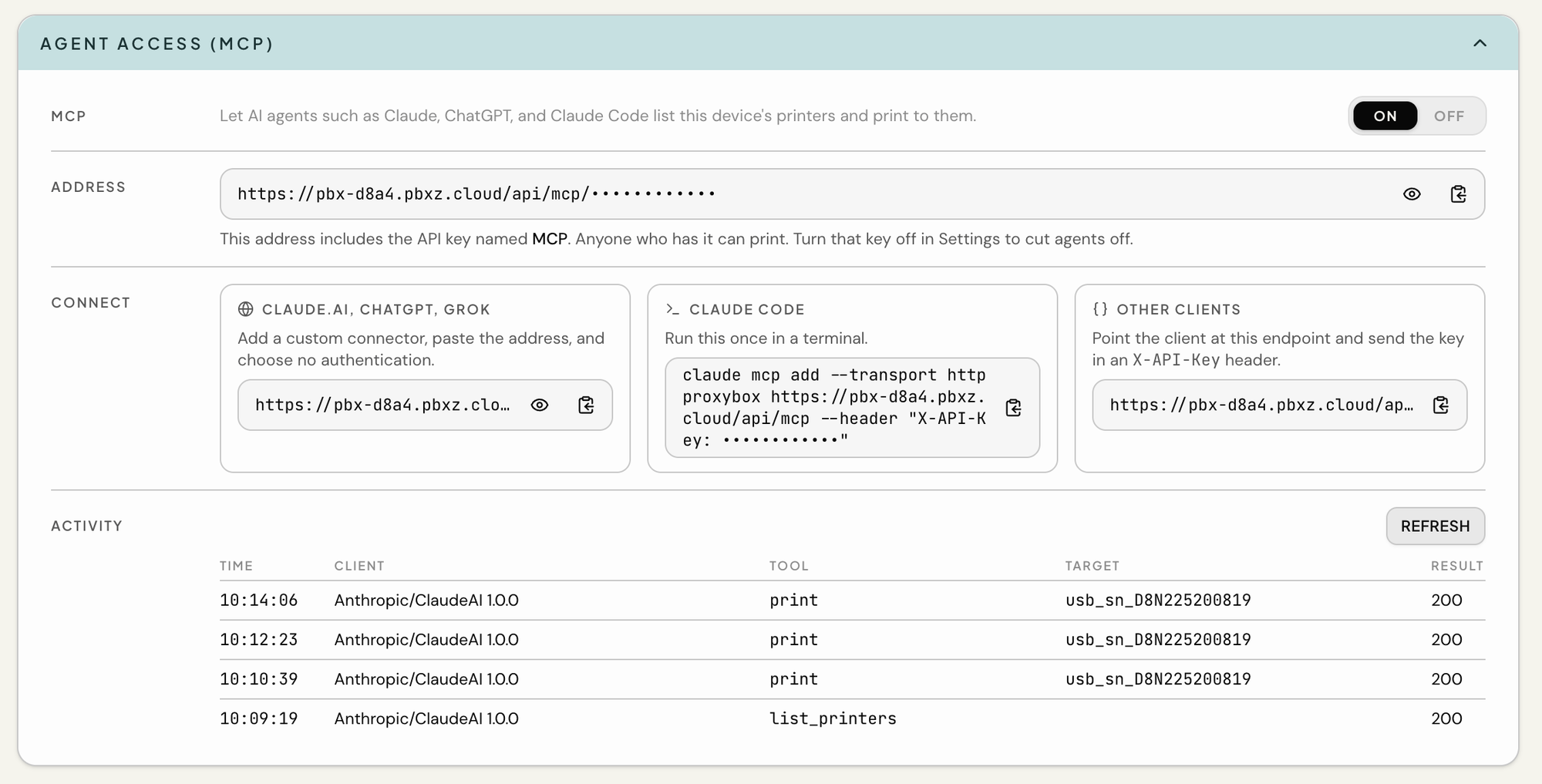
From there the client can discover the tools ProxyBox exposes automatically. You don’t need to explain the ProxyBox REST API to the model or teach it how your printer URLs work. That’s the job of the MCP server.
Then just ask it to do something.
For my test setup, that can be as simple as:
Print a mailing label to the office printer.
The request goes from the AI agent, through the ProxyBox MCP server, across ProxyBox’s secure tunnel, and finally to the printer.
No VPN. No opening inbound firewall ports. No desktop print agent running on somebody’s PC.
This Is Where MCP Gets More Interesting to Me
Most of the MCP examples I’ve seen are still very software-centric: access a database, search documentation, create an issue, call an API.
Those are useful.
But there’s something different about telling an AI agent to print a label and then hearing the printer sitting across the room start printing.
Here’s one I made with nothing more than a single request to Claude:
Make me a wifi connection label using my wifi SSID and password then print to my zebra.
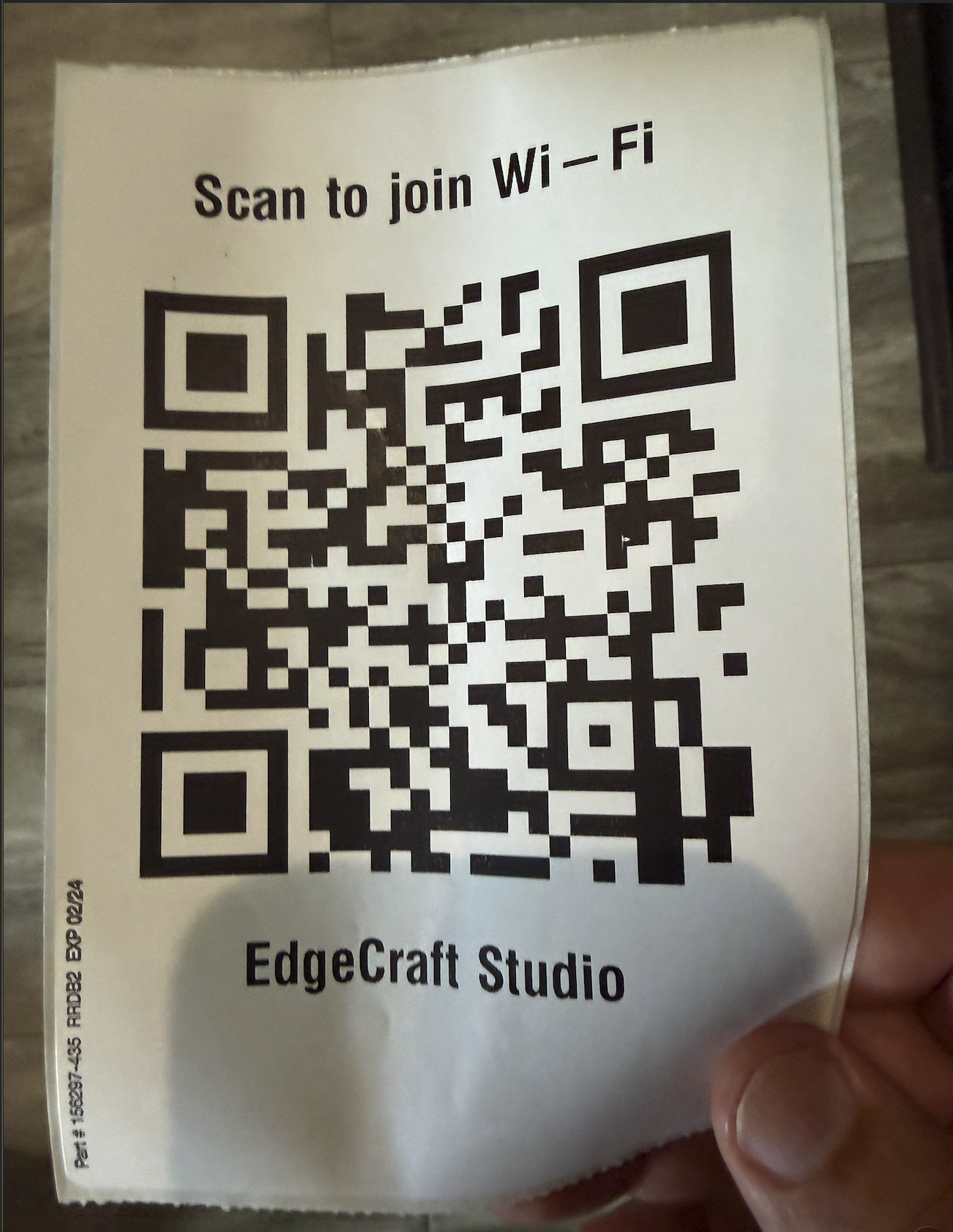
Claude generated the QR code, laid out the label, and sent it to the printer through ProxyBox. I didn’t write any code or open a print dialog.
We’re moving from agents that can manipulate information to agents that can interact with the environment around them.
That’s a big reason I built ProxyBox in the first place. Modern software increasingly lives in the cloud, while an enormous amount of the equipment businesses actually depend on still lives inside the building.
Now AI agents have exactly the same problem.
Turns out the bridge works for them too.
If you want to try it, you can learn more about ProxyBox at pbxz.io.